 New: AI Music Generator — create songs from lyrics
'%3e%3cg%20id='Group_17091'%20data-name='Group%2017091'%20transform='translate(53%20758)'%3e%3cpath%20id='Path_178899'%20data-name='Path%20178899'%20d='M51.713,62.718h-15.3a.7.7,0,0,1-.584-.328C33.8,59.247,33.65,53.2,33.638,52.3q0-.053,0-.106a.73.73,0,0,1,.705-.75h0a.729.729,0,0,1,.707.747c0,.005,0,.049,0,.128a3.749,3.749,0,1,0,7.489-.125.729.729,0,0,1,.707-.75h1.624a.729.729,0,0,1,.707.75,3.749,3.749,0,1,0,7.489.119c0-.075,0-.117,0-.122a.729.729,0,0,1,.707-.747h0a.73.73,0,0,1,.705.75c0,.036,0,.071,0,.106-.012.9-.167,6.943-2.186,10.086a.7.7,0,0,1-.584.328Zm0,0'%20transform='translate(-32.06%20-49.036)'%20fill='%23fff780'/%3e%3cpath%20id='Path_178900'%20data-name='Path%20178900'%20d='M265.721,51.449h0a.729.729,0,0,0-.707.747c0,.005,0,.047,0,.122a3.749,3.749,0,1,1-7.489-.119.729.729,0,0,0-.707-.75H256v11.27h7.652a.7.7,0,0,0,.584-.327c2.019-3.143,2.174-9.189,2.186-10.086,0-.035,0-.071,0-.106a.73.73,0,0,0-.706-.75Zm0,0'%20transform='translate(-244.004%20-49.037)'%20fill='%23ffc02e'/%3e%3cpath%20id='Path_178901'%20data-name='Path%20178901'%20d='M209.565,0a2.284,2.284,0,1,0,2.284,2.284A2.286,2.286,0,0,0,209.565,0Zm0,0'%20transform='translate(-197.565)'%20fill='%23ffc02e'/%3e%3cpath%20id='Path_178902'%20data-name='Path%20178902'%20d='M256,0V4.567A2.284,2.284,0,0,0,256,0Zm0,0'%20transform='translate(-244.004)'%20fill='%23ffa73b'/%3e%3cpath%20id='Path_178903'%20data-name='Path%20178903'%20d='M2.284,37.6a2.284,2.284,0,1,0,2.284,2.284A2.286,2.286,0,0,0,2.284,37.6Zm0,0'%20transform='translate(0%20-35.836)'%20fill='%23ffc02e'/%3e%3cpath%20id='Path_178904'%20data-name='Path%20178904'%20d='M416.85,37.6a2.284,2.284,0,1,0,2.284,2.284A2.286,2.286,0,0,0,416.85,37.6Zm0,0'%20transform='translate(-395.133%20-35.836)'%20fill='%23ffa73b'/%3e%3cpath%20id='Path_178905'%20data-name='Path%20178905'%20d='M93.683,270.213h-15.3a.707.707,0,0,1-.707-.707V267.4H94.39v2.108A.707.707,0,0,1,93.683,270.213Zm0,0'%20transform='translate(-74.031%20-254.213)'%20fill='%23ffc02e'/%3e%3cpath%20id='Path_178906'%20data-name='Path%20178906'%20d='M256,270.213h7.652a.707.707,0,0,0,.707-.707V267.4H256Zm0,0'%20transform='translate(-244.004%20-254.213)'%20fill='%23ffa73b'/%3e%3c/g%3e%3c/g%3e%3c/svg%3e) Upgrade Now
Upgrade NowI used to have a folder on my desktop called "to_edit." It accumulated photos I planned to fix someday — a family portrait with a random tourist in the background, a blurry scan of an old photo from my mom, a product shot where the lighting made the background look terrible. The folder sat there for months because opening Photoshop felt like committing to a project, not doing a quick fix.
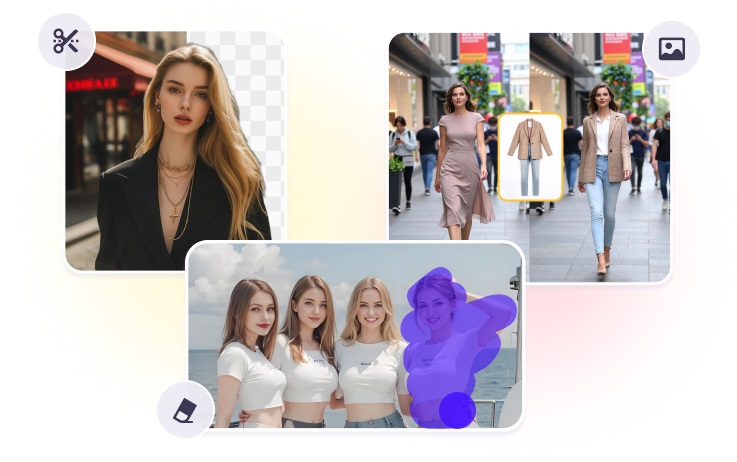
Eventually I stopped opening Photoshop at all and started using Vismz's AI photo editor instead. It's not one tool — it's five, all in a browser tab. Here's what each one does and what I've actually used them for.
Vismz AI Photo Editor — no download, no learning curve, just open and use.
1. Object Remover — For When There's Something in the Photo That Shouldn't Be
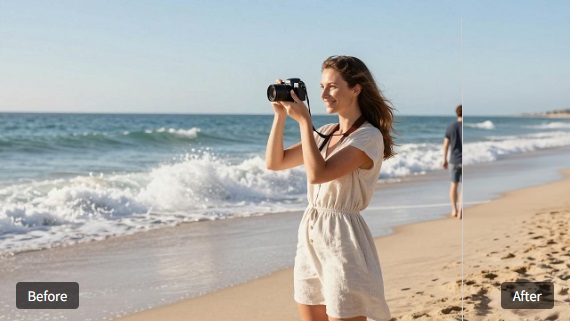
I had a great photo from a hiking trip — panoramic mountain view, perfect sky, exactly the kind of thing you want to frame. Except there was a power line running diagonally across the entire top third of the image. Drove me crazy every time I looked at it.
With the Object Remover, I brushed over the power lines, clicked remove, and the AI filled in sky and clouds where the lines used to be. The filled-in area matched the surrounding sky texture and gradient. Not perfect if you pixel-peep, but at normal viewing distances, completely invisible.
It's also good for: removing strangers in the background, text or watermarks on images, random clutter on tables or floors. The worst-case scenario — you get a slightly blurry patch that you'd need to touch up. But that's happened maybe twice out of dozens of tries I've done.
2. Upscaler — The One That Impressed My Mom
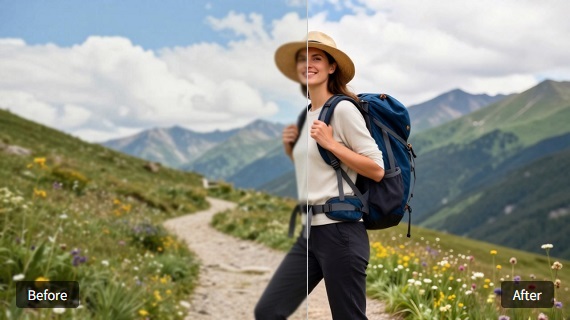
My mom sent me a photo of herself as a teenager — scanned from a physical print, probably 300×400 pixels, soft and grainy. She asked if I could "make it bigger and clearer" for a family album project.
I ran it through the Upscaler at 2×. It didn't just enlarge pixels — it reconstructed facial details and fabric texture in her clothes. The result wasn't magically 4K, but it was noticeably sharper and printable at a reasonable size. She was genuinely impressed, and telling your mom "an AI did it" is not a conversation you want to have, so I just said "computer stuff."
The upscaler works on old photos, compressed social media images, screenshots, anything that lost resolution along the way. The 4× setting exists but I've found 2× or HD is the sweet spot — beyond that, the AI has to invent too much detail and things can start to look painterly.
3. Background Remover — One Click, Done
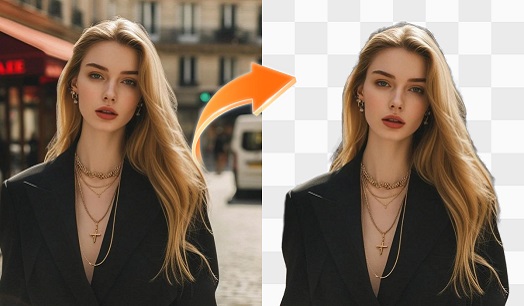
This is probably the most straightforward of the five. Upload a photo, click once, and the subject pops out with a transparent background. The hair edge detection is where the AI earns its keep — it handles wispy hair and fur better than I ever could with manual masking.
I've used this mostly for product photos and profile pictures, but it works on anything with a clear subject. For e-commerce sellers managing dozens of product listings, the time saving here is hard to overstate.
4. Clothes Changer — The One That Feels Like Magic
I was skeptical about this one. Changing someone's outfit in a photo sounds like something that should look obviously fake — wrong fit, wrong lighting, weird proportions.
It doesn't always get it right, but when it works, it's genuinely hard to tell the outfit wasn't there originally. The AI preserves body shape, skin tone, and lighting, and drapes the new clothing over the original pose. I tried putting myself in a tuxedo and the lapel shadow and fabric folds looked surprisingly real.
For practical uses: previewing clothes before buying online (retail prices being what they are, this is actually useful), e-commerce images where you want to show multiple outfit options without multiple photoshoots, and the occasional "what would I look like in a leather jacket" curiosity.
5. Expander — The One I Didn't Know I Needed
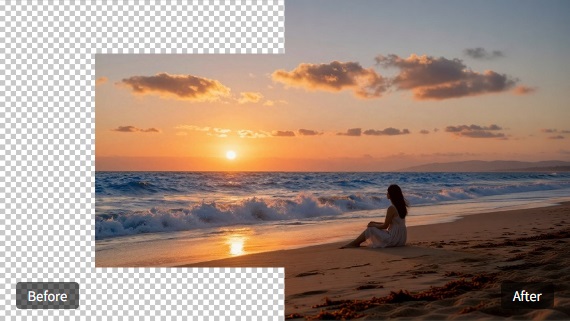
The Expander is the weirdest tool of the five, and possibly my favorite. You upload a photo, choose a direction to expand, and the AI generates new content beyond the original frame — matching the lighting, perspective, and texture of the existing image.
I had a landscape photo that was perfectly composed except I'd accidentally cut off the top of a mountain peak. The Expander extended the frame upward and filled in the missing mountain with a reasonable reconstruction of what should have been there. Is it accurate to reality? No — the AI doesn't know what was actually above the frame. But it looks right, which for most purposes is what matters.
Also incredibly useful for adjusting aspect ratios — turning a square Instagram post into a 16:9 horizontal image, or extending a portrait shot to fit a landscape format.
Are These Tools Actually Free?
Yes, with the usual caveats. You can preview all five tools without signing up. Create a free account and you get 30 credits for watermark-free HD downloads. For occasional personal use, the free tier is genuinely enough. If you're editing photos regularly, you'll want credits.
Bottom Line
I went into most of these AI tools expecting gimmicks. The Object Remover and Upscaler are the two I keep coming back to — they solve real problems I have with real photos. The Clothes Changer is the most fun, even if I use it less often. Your mileage depends on what kind of photos you take and how picky you are about results.
Try Vismz AI Photo Editor — all five tools on one page. No download, no account needed to test.

